


 Maecenas at ipsum quis massa rutrum gravida! Ut in varius orci. Pellentesque habitant morbi tristique senectus et netus et malesuada fames ac turpis egestas.
 Phasellus sed lectus nec risus posuere rhoncus sed et ligula. Sed gravida ornare turpis vel euismod. Phasellus quis tortor non lacus sodales rutrum sit amet non est
 Donec elit nulla, pulvinar nec porta sed, hendrerit eget metus. Suspendisse porttitor ligula non felis volutpat pretium? Praesent laoreet nisl a eros ultricies in lacinia
Showing posts with label Ubuntu Oneiric. Show all posts
Showing posts with label Ubuntu Oneiric. Show all posts

L.A.M.P. is an acronym for solution stack of free and open source software. In order to create a viable general purpose web server, this term has been coined from the first letters of Linux (Operating System), Apache HTTP server, MySQL (database software) and Perl/Python/PHP. Generally "P" is taken to be as PHP but it may also refer to Perl or Python. PHP, Perl and Python are web scripting software.
Each package can be configured and installed separately. Here we will see how to install them at one shot. In earlier version of Ubuntu we used to have "tasksel" and "sudo tasksel" to bring various options including "lamp-server". Simply selecting lamp-server use to do the work. But we don't have tasksel in latest Ubuntu. No worries, we still can install the lamp stack in one shot.
Open your terminal. Either press "ctrl+alt+T" or from dash type "terminal" and press enter.
You will be prompted in terminal as shown in figure. Give a password for your MySQL "root" user (you can create more users too).

Now to check if its working or not just open your favorite browser and type "localhost" in the address bar. You should see something like this-
(note: this comes from the file index.html located in /var/www/ folder of your system.)

Now to check if php is working or if not, let us create a small php file

open your browser and type in address bar the following.

yay! you are done now! :-) cheers!
Oh wait. Let us also install phpmyadmin . phpmyadmin helps to take control over our database. It can be done graphically from the browser or from the command line.
to install
press space to select apache2 server and enter.

configure phpmyadmin with dbconfig-common. Press yes to configure. give your passwords.

When you are done type "localhost/phpmyadmin" in your address bar of browser, you should see something like this-
give user as "root" and password which you had given before.
you will be taken to phpmyadmin page.
on this page you can create databases, users and many more.
:)

Each package can be configured and installed separately. Here we will see how to install them at one shot. In earlier version of Ubuntu we used to have "tasksel" and "sudo tasksel" to bring various options including "lamp-server". Simply selecting lamp-server use to do the work. But we don't have tasksel in latest Ubuntu. No worries, we still can install the lamp stack in one shot.
Open your terminal. Either press "ctrl+alt+T" or from dash type "terminal" and press enter.
sudo apt-get install php5 mysql-server apache2The above command will install latest version of PHP which is version 5 and mysql-server with apache http server 2.
You will be prompted in terminal as shown in figure. Give a password for your MySQL "root" user (you can create more users too).

Now to check if its working or not just open your favorite browser and type "localhost" in the address bar. You should see something like this-
(note: this comes from the file index.html located in /var/www/ folder of your system.)

Now to check if php is working or if not, let us create a small php file
Open your terminal and type- sudo vi /var/www/info.phpor you can open the same from gedit or any other editor as
sudo gedit /var/www/info.php
and write:save the file and exit. Restart the apache2 service by typing the command in terminal
<?php
phpinfo();
?>
sudo service apache2 restart

open your browser and type in address bar the following.
localhost/info.phpand you should see something like this:

yay! you are done now! :-) cheers!
Oh wait. Let us also install phpmyadmin . phpmyadmin helps to take control over our database. It can be done graphically from the browser or from the command line.
to install
You will be prompted to screen like this-
sudo apt-get install phpmyadmin
press space to select apache2 server and enter.

configure phpmyadmin with dbconfig-common. Press yes to configure. give your passwords.

When you are done type "localhost/phpmyadmin" in your address bar of browser, you should see something like this-
give user as "root" and password which you had given before.
you will be taken to phpmyadmin page.
on this page you can create databases, users and many more.
:)

So, you have a shiny new Ubuntu installed and want to break out from the default applications. Don’t forget, installing applications in Ubuntu 11.10 is easy!
- Ubuntu Software Center
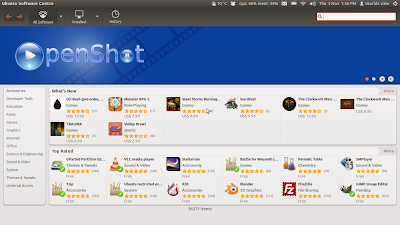
This is by far the easiest way to install programs in Ubuntu. Simply hit the dash key and type Ubuntu and the software center should pop up. Click on the orange bag icon and you will eventually hit the Software Center’s main screen. There are several ways you can find the applications you seek: you can either browse the categories on the far left, type in the search bar on the upper right quadrant of your screen, or simply browse the most popular apps or the newest releases. There are thousands of applications to choose from with most of them being free, but a few high quality paid apps too. One downside to using the software center is that many of these applications are maintained by the community as opposed to Canonical; therefore, it is not uncommon for these apps to be out of date. One example of this is Calibre. The Calibre community updates the ebook manager every week, but the app itself only gets updates once every year or so in the Ubuntu repositories.
- Command line
For the old school Linux users, this is familiar territory. The terminal and Synaptic uses the apt-get system which allows you to remove, add, or update applications easily and painlessly. All you need to install via terminal is administrator privileges and the name of the application you want. For instance, to install VLC, you will type;
Sudo apt-get install vlc
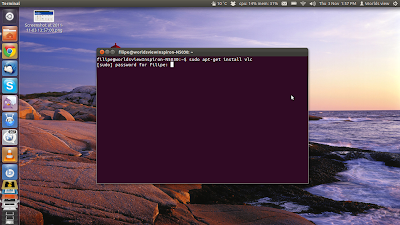
This command basically downloads the necessary packages and installs them onto your computer, allowing you to use VLC. Some other common and useful commands are:
Sudo apt-get remove vlc
To remove the application, in this case vlc,
Sudo apt-get update
This command can take a few minutes to run, but once it is finished you can then upgrade any packages with updates available.
Sudo apt-get upgrade
This will update any packages with updates pegged to them in the system
Sometimes you may need to install a .deb package from the command line, especially if you are trying to install applications in Ubuntu server installs. To install a deb file called example.deb, type:
Sudo dpkg –I example.deb
Similarly, you can remove deb packages with the following command
Sudo dpkg –r example.deb
- Installing a PPA
- It is not uncommon to have to install via ppa every now and then. Be sure to install ppas only from trusted sources, however, as you may leave your system open to people with malicious intent. To install a ppa:
- Open a terminal
- Open your browser and go to the application’s website you want to installSearch for a heading somewhere to the effect of installing or adding this ppa.Make a note of the ppa’s location. For example, gwibber can look like ppa:gwibber-daily/ppa
- Now, in the terminal type:
Sudo add-apt-repository ppa:gwibber-daily/ppa
- Once you hit enter your system will now fetch the ppa’s key.
- After you install any ppa, be sure to type the sudo apt-get update
- Enjoy your newly installed application!
- Using synaptic package manager (spm)

I personally try to avoid using synaptic package manager unless I absolutely have to partly because its interface is not the most informative unless you know absolutely what you are looking for. Ubuntu 11.10 no longer includes SPM by default so you will have to troll the software center to get it. Once you install it, launch it. SPM is basically a massive list with all the packages available for Debian and Debian derivatives like Ubuntu as well as all packages available to the repositories you’ve added. If you know
the name of the application or package you want, you can search for it in the search box, check the packages you want, mark for install, and then hit apply. If you do not know the name of the package you want, no worries, you can also search by typing a description. For instance, if you wanted to search for a new screensaver application, but don’t know the name of a particular one, you can search for “screensaver” and take a look at the packages available. You will see a variety of packages for gnome – screensaver, xscreensaver, etc.
Another feature here worth mentioning is the “Mark All Upgrades” button near the top of the application. This button, similar to sudo apt-get update, will search out all updates for packages you have installed and mark them all for installation. Hit apply.
- Deb packages
Sometimes, software developers will prefer not to have their applications available in the repositories and will want to distribute them themselves such as Opera, or any of Google’s software available to Linux. Installing these is allot like installing software on Windows since you have to go to the site and install the package. Let’s use Google Chrome as an example.
- Open your web browser (Ubuntu uses Firefox by default) and go to the google chrome home page
- Then download the .deb package.
- Once the package is downloaded, go to your Downloads folder
- Double click on the .deb package
- The Ubuntu Software Center will open
- Hit install
- Enjoy the program!
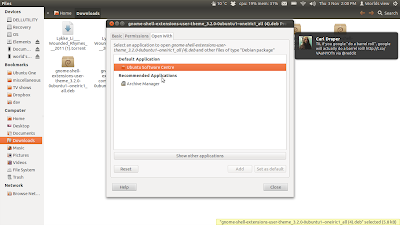
Sometimes, the software center will not open the application when you double click it even though it is a .deb package. Sometimes, you have to make the software center the default application for certain file types. To do so, right click on the package, go to properties, hit the Open With tab, then choose the software center as the default application to open with.
Duel booting is a useful, useful procedure that allows you to have multiple (or in this case two) operating systems to play around with on the same machine. I personally duel boot because I need applications that my institution supports that are only available in Windows, and I just plain prefer Linux. It can be a bit of an intimidating process, but it's actually pretty straightforward.
To begin with, you need to create a partition for Linux. A partitioning is essentially splitting your hard drive into multiple "mini" drives. It's akin to having one big house, but making it into two apartments to support more than one family. The size of the house is the same, but now you have two dwellings for two families.
To begin:
In Windows, open up disk management. Look at the graphic and determine the "location" Windows is present in (it'll usually be the C:/ drive). Right click on the graphic and select "shrink partition".

Decide how much space you want to allocate to the new partition. For Ubuntu, I recommend the minimum being at least 10 gigs, more is preferred if you want to use lots of different programs. Generally, the more space you're willing to allocate, the better.
Once you have shrunk the volume, head on to Ubuntu.com and download the ISO if you haven't already.
Burn the ISO onto disc or flash drive (we have tutorials on how to do that on this site, here and here).
Then, restart the computer and when the BIOS flashes (usually demarked by the computer's manufacturer logo right when you turn on the computer) check to see how to access the computer's boot options.For newer machines, this is usually F12 or F10. Older machines may require you to change the boot order through the computer's BIOS first. If that's the case, choose the USB or disc drives first and then change the boot order back after Ubuntu is installed.
Once you have booted into the disc media housing the Operating system, follow the onscreen instructions.
First, click Install Ubuntu.
Then choose your language and keyboard.

Then you will want to select installation type and make sure both check boxes are filled. It's not essential to the installation, but it will save you some time later on.

If you're duel booting, you can select either "install Ubuntu alongside them" or "Something else".I prefer something else as it gives you more control.

Then, with that free partition you created, highlight it and select to format it to ext4 and you will want the mount point to be / (forward slash). WARNING: MAKE SURE YOU HAVE SELECTED THE FREE PARTITION AND NOT THE PARTITION WINDOWS IS IN. IF YOU FORMAT THE WRONG DRIVE YOU WILL LOSE INFORMATION.


Then click ok and enjoy the graphical trip of Ubuntu while it's installing.
The hard part is done! Enjoy and happy computing.

Today is a big day for Ubuntu users as Ubuntu 11.10 is finally released. I've done full detailed beta 1 and beta 2 reviews over the last month and for those who have been following this will
be more of the same.
Changes made since beta 2:
- Gnome 3.2 is the base of Unity
- Firefox 7 is now stable
- Many (many!) bug fixes and refinements
Overall, what's new with Oneiric from Natty:
- Refined dash
- Lenses and filters help refine dash searches
- Launcher, dash, and panel now have a spiffy camouflage feature that automatically approximates best match color scheme with desktop background
- Thunderbird 7.0.1 is now default mail client (yay!)
- Deja Dup is now included by default as backup management tool (another yay!)
- The login screen got a spiffy new look
- Indicator applets got a massive makeover
- New alt + tab application switcher
- Synaptic is gone, with the Ubuntu
- Software Center as primary package manager
- Many, many visual and functionality refinements to the OS
So, some general thoughts: 11.10 is both the most easiest to use Ubuntu, but also the most frustrating. Unity has a definite learning curve, but once you figure it out it's quite usable (though not outstanding). It's visual appeal will probably put Linux newbies at ease, but the incessant need to use desktop shortcuts may place the casual computer user in an awkward position. You can now use Unity completely through the GUI thanks to the new dash launcher, but this quickly becomes irritating and for the sake of efficiency the desktop shortcuts will have to be used. If you're already in the habit of using the keyboard to make quick navigational changes, you're in a good position.....If not, then you will learn. Oh yes, you will.

Fortunately, if you prefer to use Ubuntu with other desktop environments then you're in luck again. I've tested 11.10 on a variety of desktop environments and they all seem to work really well. Gnome 3 is now the base of 11.10's Unity incarnation and it's so much easier to install Gnome 3 than back in Natty days. I've given Gnome 3 a whirl over the last few days and it's snappier, more stable, looks pretty, refined, and just plain cool. I'm no longer a fan of Gnome, unfortunately, but that's just personal preference.
Gwibber, The Ubuntu Software Center (USC), and Thunderbird got some love too. For those who have been following, Gwibber and USC got a new makeover and they are much easier to use now. Gwibber has always been a bit of a pain to use, and still is, but it's now less of an irritant. Gwibber has now become my social media client of choice (surprising, eh?) because of it's clean interface and intuitive design. That's not to say it's perfect: one of the issues that bothers me is that Gwibber doesn't show which post came from where unless you hover the mouse over it (is this Facebook or Twitter?) and it takes longer to start - up than it should (at least 6 seconds), but other than that I love it. I'm quite impressed with it, especially since I hated Gwibber from the beginning. It's still integrated tightly into the OS as well, allowing you to update both FB and Twitter simultaneously through the message applet; however, to actually update through the applet is now more of a hassle. Before, all you had to do was click on the applet and then start typing. Now, you have to click the message applet, scroll down, click, than start typing. That's a whole extra step! I know this sounds minor, but this is part of a bigger problem with Unity: little things do not feel as efficient as they could be (or did in the past in this case).

As far as system performance goes: things are freakin' sweet! 11.10 at this point is quite the stable OS with only a few blips here and there. Since updating to 11.10 stable I've had no freezes, blips, hangs, or kernel panics. It simply feels rock solid. I've also noticed that at idle, the OS consumes less system resources than Natty. I suspect this has to do more with the Linux kernel changes than anything Canonical did, but it's still a nice development.
Essentially, this is a rock steady release and with a few tweaks it's quite usable. Even Unity is starting to shape up, but at this point Its probably not the most efficient desktop environment around. The little things seem to take more effort than it should. If you're using the mouse primarily, expect allot of extra (superfluous?) clicks. I think newbies can start using this DE as well, but they WILL get frustrated in the beginning, especially if they're not used to using the keyboard to get around. That's not to say this isn't a great starting distro for newbies because it is. I think Canonical made some great changes to be more appealing to the less geeky masses. For instance, it's nice to see synaptic gone (it's quite intimidating towards the casual computer users, just ask my sister) and replaced with the much less cumbersome USC. The only downside to this is USC is still premature as a package manager so if you have the know - how, keep Synaptic. I'm hoping that in upcoming releases the USC will be better suited towards managing packages (as opposed to "just" applications).

To summarize my beta articles and this one: 11.10 does some things really well, most things satisfactorily, and a few things terribly. I was thinking of jumping ship and moving to another distro, but 11.10 has convinced me that Ubuntu still has some surprises kicking around. My biggest pet peeve with the OS is Unity itself, not the OS, so with another DE I'm quite happy. If you're interested, I've gone into a bit more detail in my beta reviews so you might want to check that out too.
Give 11.10 a try, you might actually like it.
Skype is a free video calling service available for Mac OSX, Linux, and Windows. It’s a pretty simple piece of software with elaborate functionality and should be one of the first things you do after any new operating system install. Here’s how to install Skype 2.2 for Ubuntu 11.10: 1.
Download the skype file from here http://www.skype.com/intl/en-us/get-skype/on-your-computer/linux/

Choose 32 bit or 64 bit according to your machine architecture.
After download has been completed double click on it. It will open from software center. Click on "install" and then you are ready to use skype :) .
That’s it!Enjoy Skype.
Unity is a great piece of desktop shell that will become even greater with Oneiric soon.
But that's not my topic for toToday, my topic is a complaint about Unity, something that
I hope will get better in Ubuntu 12.04 LTS Precise Pangolin.

But let me start with the very roots of this problem:
Unity divides your programs into three different groups: Your favourite ones,
those of which you know the name but which you don't need that often though and last
(and also pretty much least)
those of which you don't even know the name because
you only need them in exceptional cases.

What about the accessibility of each of those groups?
Reaching the first group is some kind of a pretty easy task:
You have its programs in the launcher at the left hand side of your screen.
No problem at all.
Reaching the second group is no problem neither - if you are a keyboard lover:
Hit the Windows key, ahem, of course, I'm talking about the Super key and
then type in the first letters of your desired program until it appears in the results.
Those who don't want to use a keyboard for opening programs,
 have to follow the same process as for group No. 3.
Reaching the third group means research: Open the dash,
choose the applications lense (scope, or however they are called in Oneiric now…),
choose the filtering option, decide which category is most likely to
contain your program and browse this category hoping to find what you searched for.
Not so easy, is it?

Unity is designed for - let's face it -
computer beginners (what does not mean it would not be great for others!).
Several problems appear when thinking about the text written above:
First: Have you ever watched one of those
"most stupid assumable users" (as we call them in our country)
using a keyboard and wondered afterwards not having strangled him?
Quite likely that you answer this question with a "yes".
It goes like "search for letter" → "hit" → "search for letter" → … and so on.
Quite a frustrating thing. As a result,
such a MSAU can't use the program search function really effortlessly.
So he has the choice between a keyboard or a category research.
The choice between hell and blood eagle -
 if you want to hear an extremely exaggerated comparison.
Second: For an occasional computer user the third group is quite a big one,
 so he'll often have to proceed as complicatedly as shown above.
And third: Try to explain this process to such a user. I promise:
You will give up explaining before he will even have the possibility of
giving up to try understanding what you are talking about.

What do I want to tell with all that? Answer:
We need a better accessibility of category research.
 Definitely.

Now, let's see what salutes us after opening the dash.
Something like on the picture below/above/aside
(similar in Oneiric, this is a Natty screenshot).
After having been using Unity for half a year now I can look back saying that
I have actually never used any of these links. The preferred applications
in the second row should most likely already be in the launcher
(at least on my system they are, just look at the
launcher at the left margin of the screenshot).
The links to the applications and the documents lense
(the two links at the right hand side of the first row)
can be found elsewhere, too.
So, they're not necessary neither. The only links I possibly use sometimes
are the links to the multimedia and Internet application categories.

So, why don't we leave out those links nobody needs at all from the "dash start page"
and expand those we need sometimes? You could open the dash
and find links to all categories
of programs already on the start page? Doesn't this sound like a good solution?
As a result,
the dash start page will gain a reason of existence and the category
research will be much more easily accessible.

See, I'm no interface designer,
just some random guy that has been using Unity for a longer span of time now.
If you think, I'm telling complete nonsense, feel free to criticize
my opinion in the comments at all time.